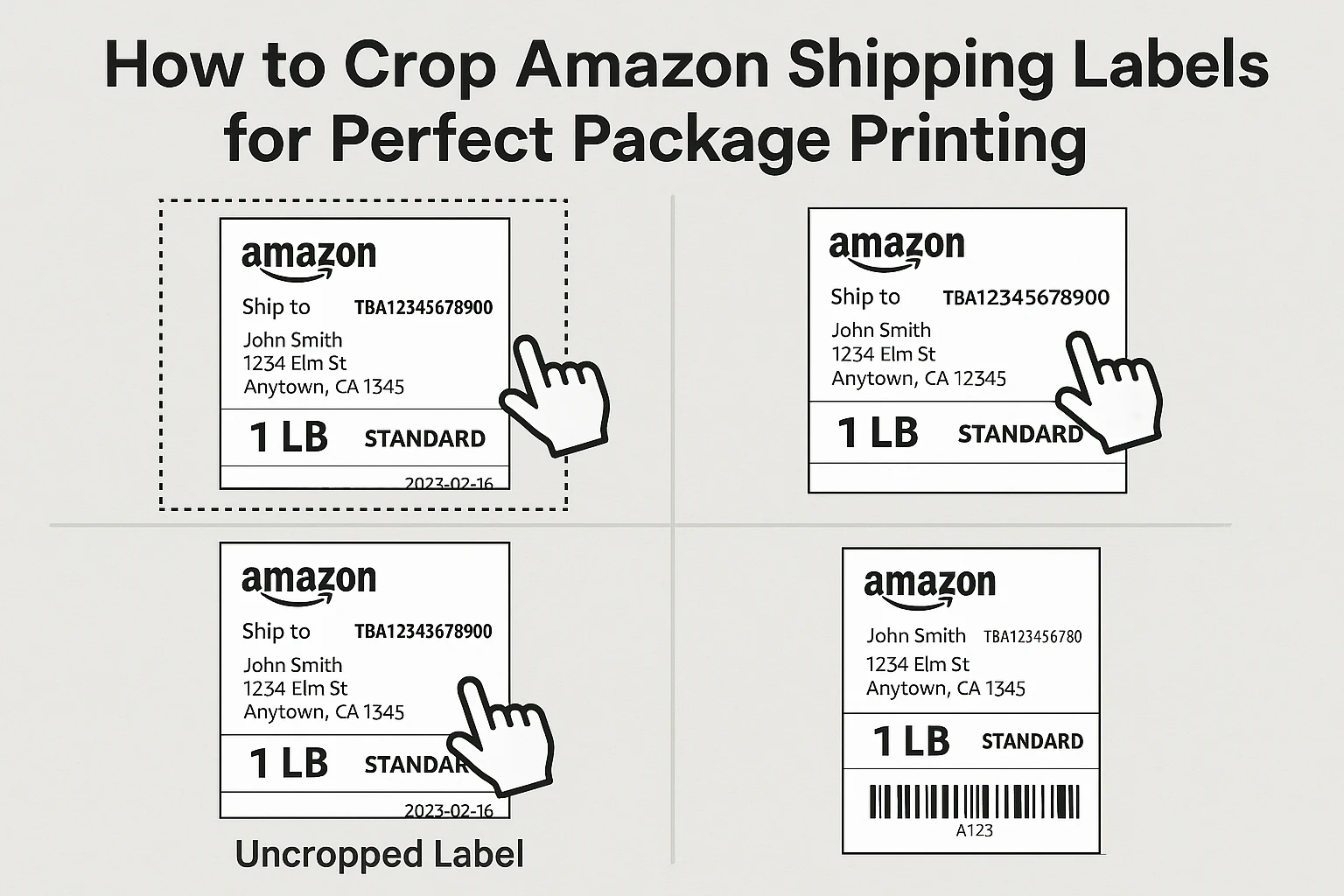
Why Crop Amazon Shopping Labels?
Amazon invoices and labels often include extra white space, instructions, or multiple panels on a single page. If you tape the whole sheet to a box, barcodes can bend around corners and become hard for couriers to scan.
The Amazon Label Crop tool in PDFTools solves this by cutting out only the label portion you actually need. You get a clean, edge-to-edge label that fits on common A4 or letter-sized sticker sheets.
Step 1 – Upload Your Amazon Label PDF
Start by downloading your Amazon shipping label or invoice as a PDF from your Amazon seller or buyer dashboard. Then open the Amazon Label Crop tool on PDFTools and drag the file into the upload box or click to browse from your computer.
Once uploaded, the tool renders a clear "Before" preview of your original page. This is your reference view, showing the full invoice or multi-section label exactly as Amazon generated it.
Step 2 – Position the Crop Box Around the Label
Use the draggable crop box to highlight only the portion of the page that contains the scannable shipping label—typically the block with the big barcode, receiver address, and Amazon logo.
You can drag from any edge or corner to resize the box. Keep a small margin around the barcode so it is not cut off when you print. The live coordinates update behind the scenes so the crop is pixel-accurate.
Step 3 – Check the Before/After Preview
As you adjust the crop box, PDFTools updates an "After" preview that shows how the final, cropped label will look. Compare it with the original "Before" panel to make sure every critical element is preserved.
Look for three things: the full barcode should be visible, the address text should be centered and legible, and there should be enough white space around the edges for cutting or peeling from a sticker sheet.
Step 4 – Download and Print the Cropped Label
When you are satisfied with the crop, click the convert or download button. PDFTools generates a new, single-label PDF that contains only your selected region.
Open the file in any PDF viewer and print at 100% scale (no "Fit to page" or "Shrink" settings) to ensure barcodes stay scannable. You can tape the cut-out label directly to your package or print onto adhesive paper.
Troubleshooting Common Amazon Label Issues
If the barcode looks blurry in the After preview, zoom in on the Before view and slightly expand the crop box so the engine has more resolution to work with.
For labels that span two columns, crop one label at a time into separate PDFs. This keeps each label centered and easier to align on your box.
Conclusion
Cropping Amazon shopping labels with PDFTools keeps your packages tidy and scanner-friendly. By carefully positioning the crop box and using the built-in before/after previews, you can avoid misprints, save paper, and ship with confidence every time.