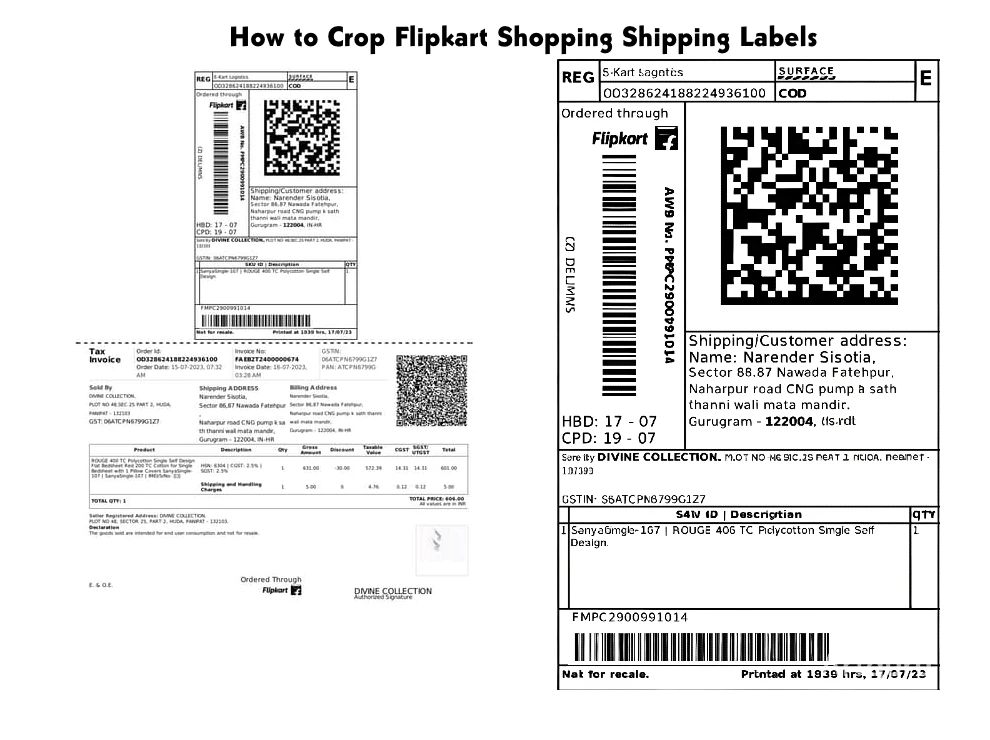
Understanding Flipkart Label Layouts
Flipkart PDFs often bundle the shipping label, buyer invoice, and return instructions on a single page. Printing this entire page wastes paper and makes it harder to tape the important part onto your parcel.
The Flipkart Label Crop tool focuses on extracting just the shipping label region, turning a cluttered invoice into a compact, professional-looking sticker.
Step 1 – Upload the Flipkart PDF
Download your Flipkart label or invoice as a PDF from the orders screen, then open the Flipkart Label Crop page in PDFTools. Drag and drop the file or tap the upload area to select it.
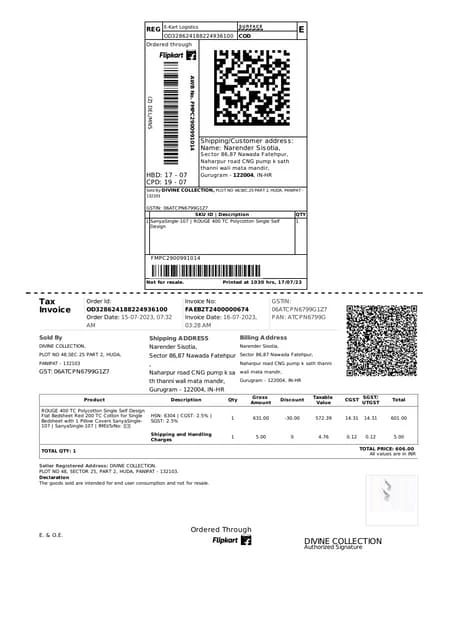
The tool instantly renders a crisp "Before" snapshot that matches the full page you downloaded from Flipkart. Use this to locate exactly where the label sits.
Step 2 – Use the Crop Box to Isolate the Shipping Label
Click once on the label area and drag the handles of the crop box until it tightly wraps the shipping label rectangle. Include the Flipkart logo, barcode, and address block inside the frame.
If the label is slightly tilted or printed off-center in the invoice, leave a bit of extra white space so nothing important is clipped when the PDF is re-rendered.
Step 3 – Compare Before and After with Sample Images
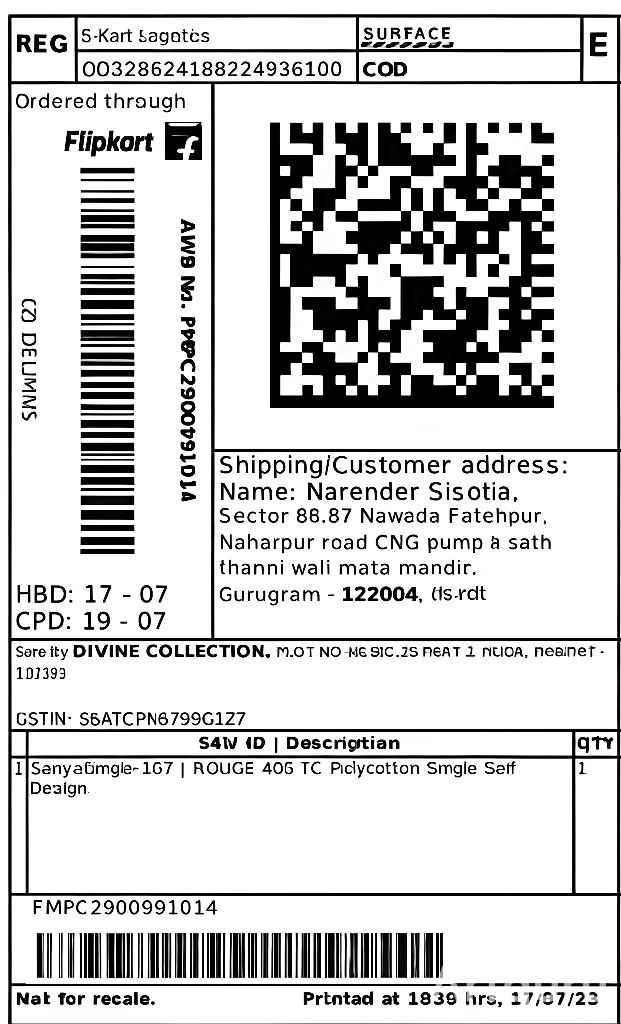
PDFTools shows an "After" preview that mirrors how your cropped label will export. You can think of it like a before/after image pair: the full invoice on the left, and the tight shipping label on the right.
Adjust the crop until the After view looks like the ideal sticker—balanced margins, clear barcode, and just enough space for cutting lines.
Before
After
Step 4 – Download, Print, and Stick
Once you are happy with the crop, hit Download to generate a fresh PDF containing only the label area. This file is lighter and prints faster than the original invoice.
Print at actual size on plain paper or adhesive sheets, then cut along the outer margin and tape or stick the label squarely on your parcel.
Conclusion
The Flipkart Label Crop tool turns messy invoices into clean, scannable shipping labels in a few clicks. With clear before/after previews and a simple crop box, you can prepare every parcel to look like it came from a professional fulfillment center.