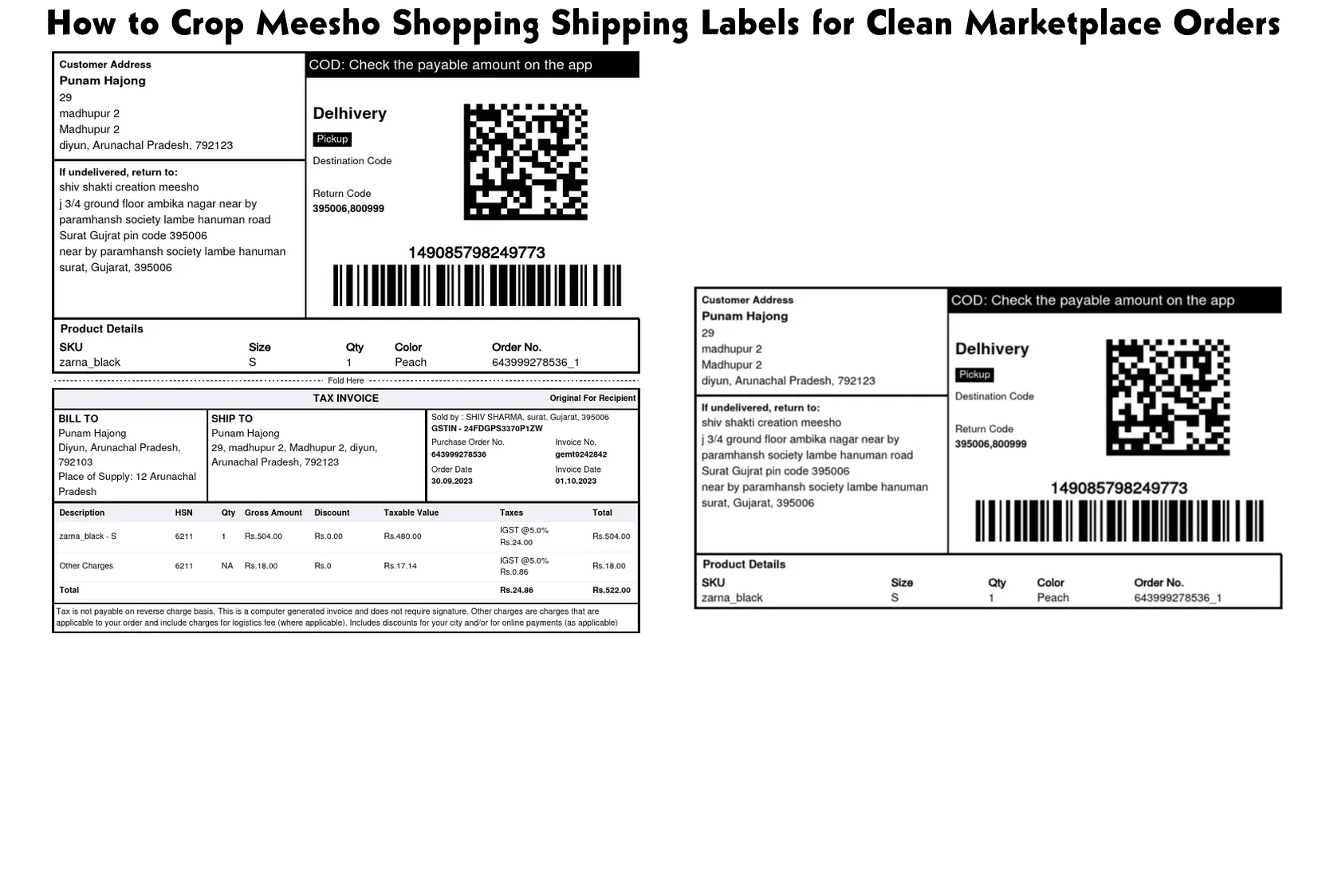
Why Meesho Sellers Should Crop Labels
Meesho order PDFs often contain both buyer and seller copies, terms, and support information. If you print everything, your label becomes bulky and can peel off easily.
By cropping only the shipping block, you reduce visual clutter and give delivery partners a clear, scannable label that speeds up sorting and doorstep delivery.
Step 1 – Upload the Meesho Order PDF
Export your Meesho order as a PDF, then open the Meesho Label Crop tool on PDFTools. Drag the file into the upload area or select it from your downloads folder.
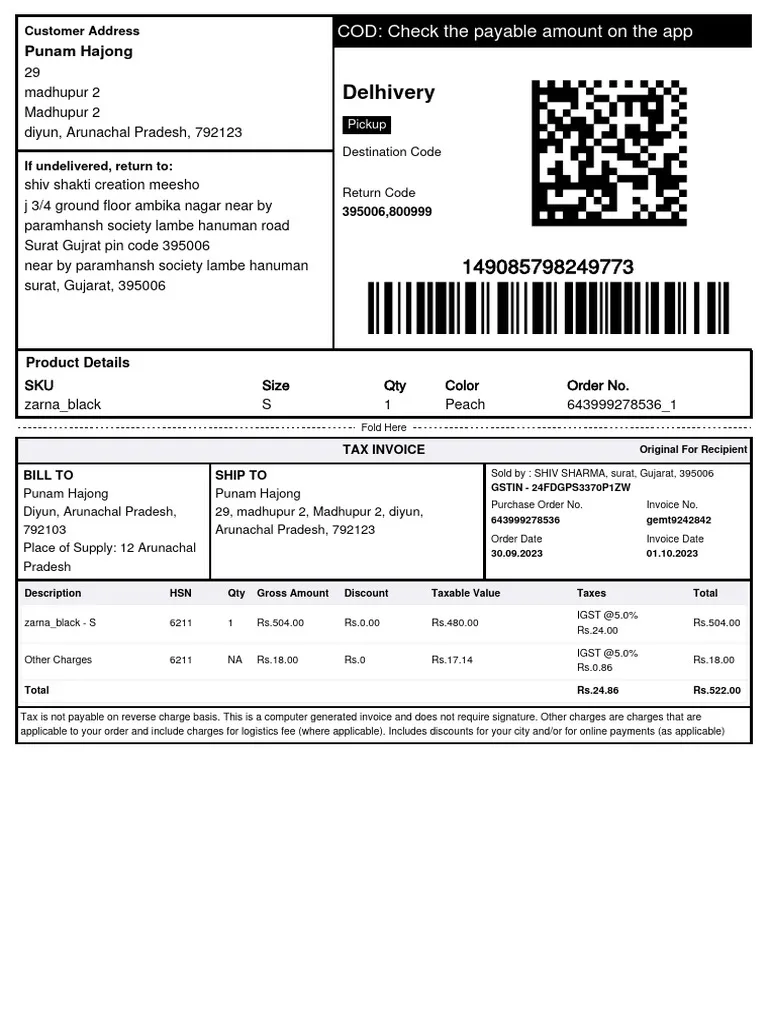
The interface displays a high-quality "Before" image that shows the entire page, including any extra copies or terms printed by Meesho.
Step 2 – Draw a Precise Crop Area
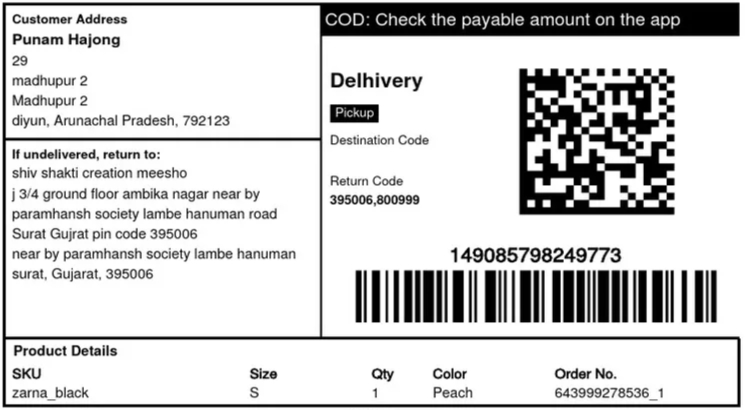
Position the crop box around the main shipping block—the one with the large barcode, order ID, and customer address. Include any COD amount or return code that couriers might need.
Use the side and corner handles to fine-tune the box. If your label contains two stacked sections, you can either crop them together or generate separate labels by running the crop twice.
Step 3 – Validate with Before/After Previews
Check the "After" preview to see the exact result of your crop. This functions as a side-by-side before/after comparison so you can confirm that all key fields survived the cut.
Zoom in if necessary and look for three things: no barcode truncation, a complete address, and clear COD or prepaid indicators.
Before
After
Step 4 – Export and Print Seller-Ready Labels
When the After view looks perfect, click the download button to export a trimmed PDF that contains only your selected region.
Print the new file at 100% scale, cut around the edges, and secure the label firmly with tape or on a sticker sheet so it stays readable throughout transit.
Conclusion
With the Meesho Label Crop tool, marketplace sellers can produce clean, professional shipping labels without touching a design app. Upload, crop using the visual box, confirm through before/after previews, and you are ready to ship more confidently.